Settings
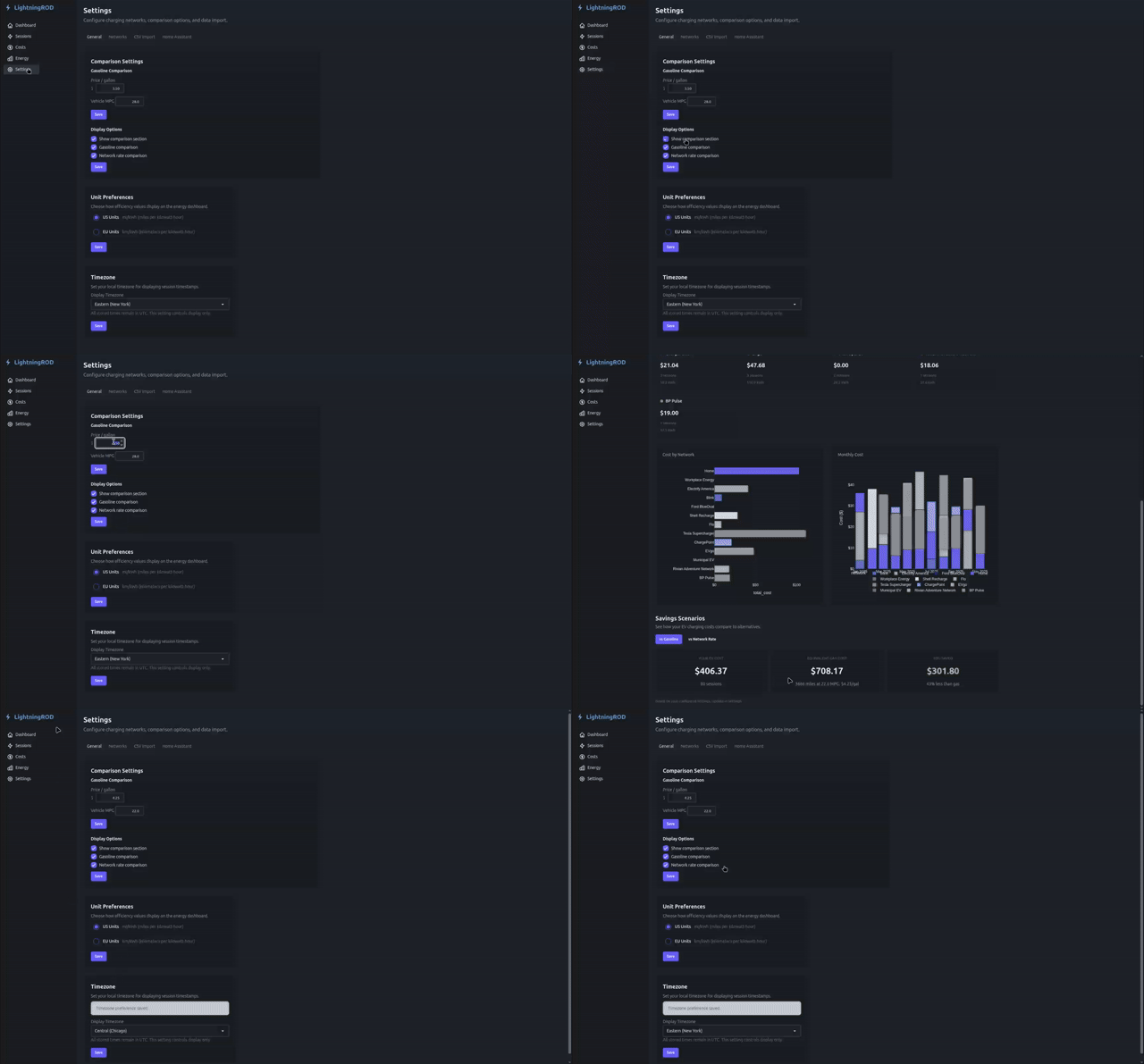
The settings page (/settings) is organized into focused tabs. Most updates apply immediately after saving.
Tab Overview
The General tab is the default on load.
| Tab | What it manages |
|---|---|
| General | Units, timezone, comparison display toggles, developer tools, About |
| Vehicles | EV profiles, battery presets, active vehicle selection |
| Networks | Networks, locations, charger stalls, subscription periods |
| Fuel | ICE vehicle fleet, gas price history, fuel price trend chart |
| Import | CSV template download and bulk session import flow |
| Data Sources | Home Assistant FordPass and gas-price source adapters (URL, token, sensor IDs, enable/disable) |
Vehicles Tab
Use this tab to manage EV profiles and choose the active vehicle for vehicle-specific pages like Charging Sessions, Costs, Charging Performance, Battery Analytics, and Driving.
Each vehicle includes a name, make/model/year, usable capacity, gross battery capacity, and VIN or device ID. ICE comparison vehicles live on the Fuel tab and are no longer attached to the EV record.
Usable vs Gross Pack Capacity
Each vehicle stores two capacity values because they power different calculations:
- Usable capacity is the energy you can actually drive with. It is used for efficiency and range-related calculations.
- Gross pack capacity is the full battery size. Battery Analytics uses it to compare the current pack reading against the original pack size.
Keeping these values separate avoids bad health numbers. The preset table below fills both values automatically when you pick a trim.
Vehicle Presets
The Edit Vehicle modal uses a simple Make → Model → Trim → Capacity picker. Choosing a make narrows the model list, choosing a model narrows the trim list, and choosing a trim fills in both capacity fields from the preset table.
Ford is preselected because it is the only preset make today. For vehicles outside the preset list, you can type the values yourself.
Lariat / trim packages
The preset table currently treats trim as a battery variant such as SR, ER, or Flash. If you want to use a marketing trim package like Pro, XLT, Lariat, or Platinum, leave the trim blank or type it in manually.
Networks Tab
Networks group charging locations and rates. Each network includes:
Settings vs. Review Queue
Use the Networks tab to manage the main list of networks, locations, and rates. Use the Review Queue to clean up new items that were added automatically. Settings is for setup; Review Queue is for review and cleanup.
| Field | Description |
|---|---|
| Name | Network name (e.g., "Home", "Electrify America") |
| Cost per kWh | Base electricity rate for this network |
| Color | Hex color for badges and charts |
| Free | Whether this network charges nothing |
| Notes | Optional description |
The table shows each network with its color, session count, and location count. Rows expand to show a read-only location summary.
Network Edit Modal
The network modal has three tabs:
- Details -- Edit name, rate, color, free toggle, and notes. Includes Recalculate Session Costs for network-driven recalculation.
- Locations -- Manage locations for this network.
- Subscription -- Manage member-rate periods over time.
Locations
| Field | Description |
|---|---|
| Name | Location name (e.g., "Main St Station") |
| Location type | Home, work, public, retail, destination, highway, other |
| Address | Street address |
| Latitude/Longitude | GPS coordinates |
| Cost per kWh | Optional override of network cost |
| Notes | Optional description |
Location cost_per_kwh overrides network cost_per_kwh when computing estimated costs.
Charger Stalls
Each location can have multiple stalls with different hardware details:
| Field | Description |
|---|---|
| Label | User-defined name (e.g., "350kW CCS", "L2 West Wall") |
| Charger type | L1, L2, or DCFC |
| Rated kW | Maximum rated power |
| Voltage / Amperage | Typical electrical specs |
| Connector type | CCS, CHAdeMO, J1772, NACS, Tesla |
| Default | Auto-select this stall when the location is chosen |
When you edit a session, picking a stall can fill in the EVSE fields for you.
For supported networks, use Pre-fill from [Network] to load known stall templates.
Subscription Periods
Subscriptions let you track member pricing over time.
| Field | Description |
|---|---|
| Member rate | Member $/kWh used during the subscription window |
| Monthly fee | Flat monthly subscription cost |
| Start / End date | Active period (end_date blank means currently active) |
| Notes | Optional plan metadata |
This data powers member-vs-non-member savings on the Costs page.
General Tab
Developer Tools
Enable developer tools to show extra diagnostics in the sidebar. When this is on, the Data Sources page appears under System.
Data Sources (/admin/data-sources) lists the Home Assistant signals LightningROD knows about, along with the unit it expects and the last value it saw. Use it when a sensor looks wrong or you want to confirm that a new signal is being read correctly.
Comparison Display Options
Toggle which comparison sections appear on the Costs page:
- Comparison section
- Gasoline comparison
- Network rate comparison
Unit Preferences
LightningROD stores distances, temperatures, efficiency, and volume in metric in the database, then converts them for display. Distance and temperature are controlled separately, so you can mix them if you want:
| Axis | Options | What it changes |
|---|---|---|
| Distance | US (mi, mi/kWh, MPG, gal, mph) / Metric (km, km/kWh, L/100km, L, km/h) | Distance, range, efficiency, fuel economy, speed labels |
| Temperature | US (°F) / Metric (°C) | Temperature displays and charts |
You can, for example, pick mi/kWh with °C if that's how you think about your vehicle.
Timezone
Set your local timezone, such as America/New_York. The app displays timestamps in that timezone, but stored data stays in UTC.
This setting is also used as the default for CSV imports.
Fuel Tab
The Fuel tab holds everything that powers gas comparisons on the Costs page.
ICE Vehicles
A multi-row table of internal-combustion vehicles used for gas savings comparison. One vehicle is marked Default and is used for new charging sessions; you can keep additional vehicles in the table to swap which one drives the comparison.
| Field | Description |
|---|---|
| Label | Vehicle name (e.g., "2024 F-150 XLT 2.7L") |
| Combined fuel economy | Stored in metric (L/100km); shown in your configured units |
| Tank capacity | Stored in litres; shown in your configured volume unit |
| Default | The vehicle used by the gas-comparison cards on Costs |
Add, edit, delete, and Set Default are all available per row. You cannot delete the default vehicle — promote another row first.
Display Options
Toggle which comparison sections appear on the Costs page: comparison section, gasoline comparison, network rate comparison.
Gas Price History
Month-by-month gas price history with two tracks:
- Station price — your usual station
- Average price — regional average
Values are stored in metric ($/L) and converted to your configured volume unit for display. The history feeds the gas comparison cards on Costs.
Fuel Price Trend
A chart of Station vs Average gas prices over time, in your configured volume unit.
Import Tab
Use this tab for bulk imports. It includes template download, timezone selection, automatic column matching, preview, inline fixes, duplicate handling, and a final summary.
See the dedicated CSV Import guide for the full flow.
Data Sources Tab
Configure the source adapters LightningROD reads from. Two adapters ship today:
- HA FordPass — Home Assistant URL, long-lived access token, VIN override, unit system, auto-connect toggle, plus live connection status, event counters, and Reconnect / Disconnect / Backfill controls.
- HA Gas Price — Home Assistant sensor entity IDs for station and average gas prices.
Each adapter has its own enable toggle, so you can disable one source without unwiring the other. See the Home Assistant Integration guide for the full FordPass flow.
Looking for the old Home Assistant tab?
Home Assistant settings now live on this tab as the HA FordPass card.