Cost Analytics
The costs page (/charging/costs) breaks down your charging expenses and shows how they compare with gas or other charging networks.
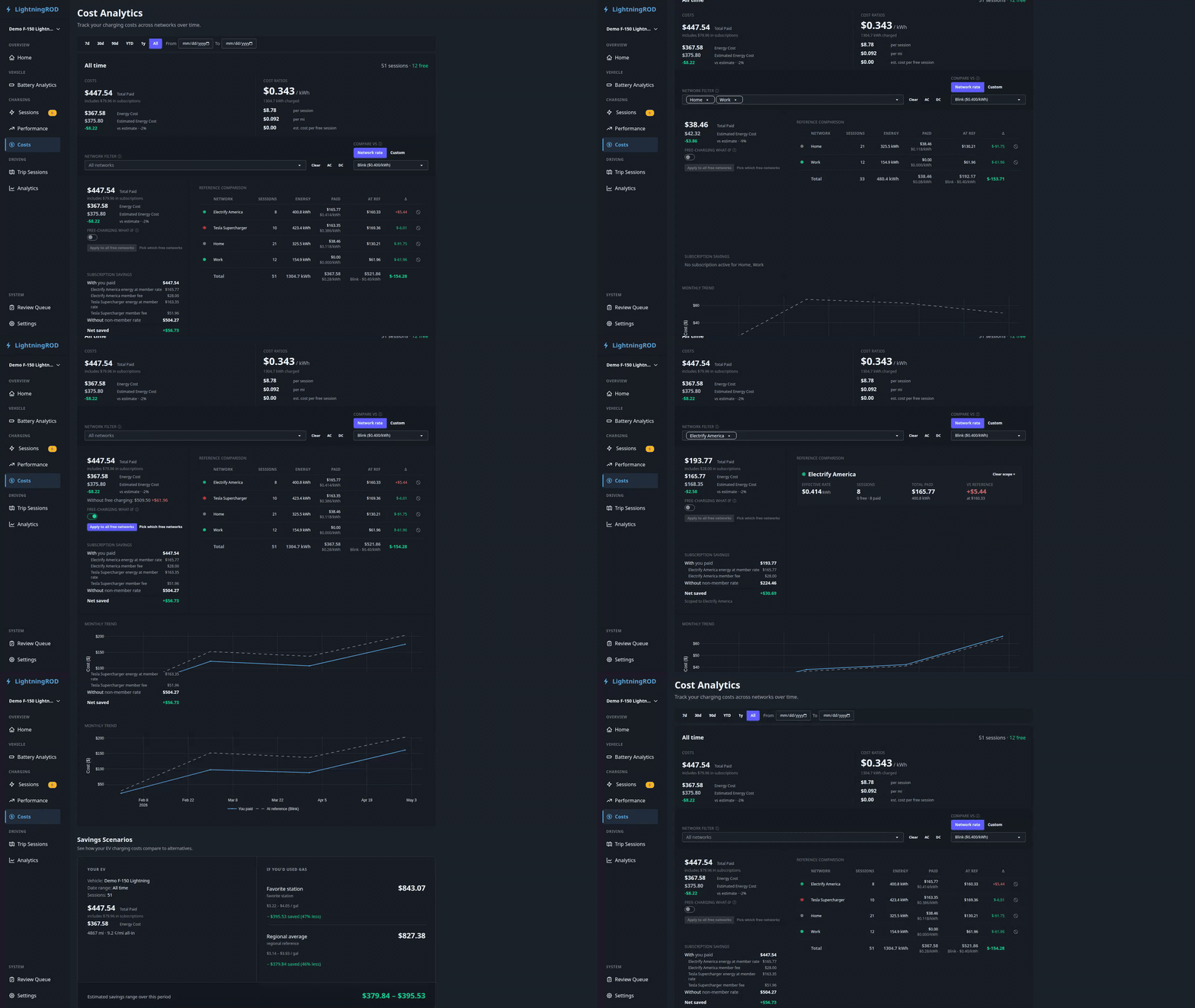
Time Range Filter
Filter the whole page by 7d, 30d, 90d, YTD, 1y, or all-time. Every card below updates together.
Cost Explorer
The Cost Explorer card is the main surface on the page. The top strip always shows your overall Costs and Cost ratios ($/kWh, $/session, $/mile or /km) across every network in the active range.
Three controls below the strip drive the rest of the card:
- Network filter — multi-select with AC and DC quick-picks. Leave it empty to include every network.
- Compare vs — pick another network's rate, or switch to Custom and enter your own $/kWh as a what-if reference.
- Free-charging what-if — re-bill free sessions at the reference rate to see what they would have cost. Choose Global to apply to every free session, or Per-network to pick which free networks to rebill.
Ledger
The right pane lists each network with sessions, energy, what you paid (and its effective $/kWh), the same total at the reference rate, and the Δ between them. A positive Δ means you paid more than the reference; a negative Δ means you saved.
- Click a row to scope the whole card to that network. The ledger collapses into a single-network detail panel showing effective rate, free/paid split, total paid, and Δ vs reference.
- Click the × on a row to exclude that network from the filter.
- Clear scope restores the multi-row view.
Subscription savings
When a subscription is active in the range, the left aside shows a With / Without / Net saved breakdown — what you paid as a member, what you would have paid at the non-member rate, and the difference. If no subscription applies, this collapses to a single line.
Monthly trend
A monthly bar chart sits below the body and reflects whatever filters and what-ifs are currently set.
Shareable URLs
Every control writes back to the URL, so any view of the Cost Explorer is bookmarkable and shareable.
Savings Scenarios
The Savings Scenarios card compares your all-in EV cost (energy + subscription fees) against gas, using your configured favorite station and regional average price sensors. The energy-only EV figure is shown beneath the all-in number so you can see both.
Gas sensors and the ICE comparison vehicle are configured in Settings.
How Session Costs Work
Session costs follow this order:
- Session marked free — Display cost is
$0.00 - Stored session cost — Manual/imported values are used for display
- Network marked free — Display cost is
$0.00 - Location override rate —
energy_kwh * location.cost_per_kwh - Network rate —
energy_kwh * network.cost_per_kwh(or active subscription member rate) - No rate data — session is unconfigured for cost and excluded from resolved totals
Estimated cost is tracked separately so LightningROD can compare actual and estimated values.
If rates or subscriptions change in Settings, you can recalculate costs for the affected sessions.